
Introduction
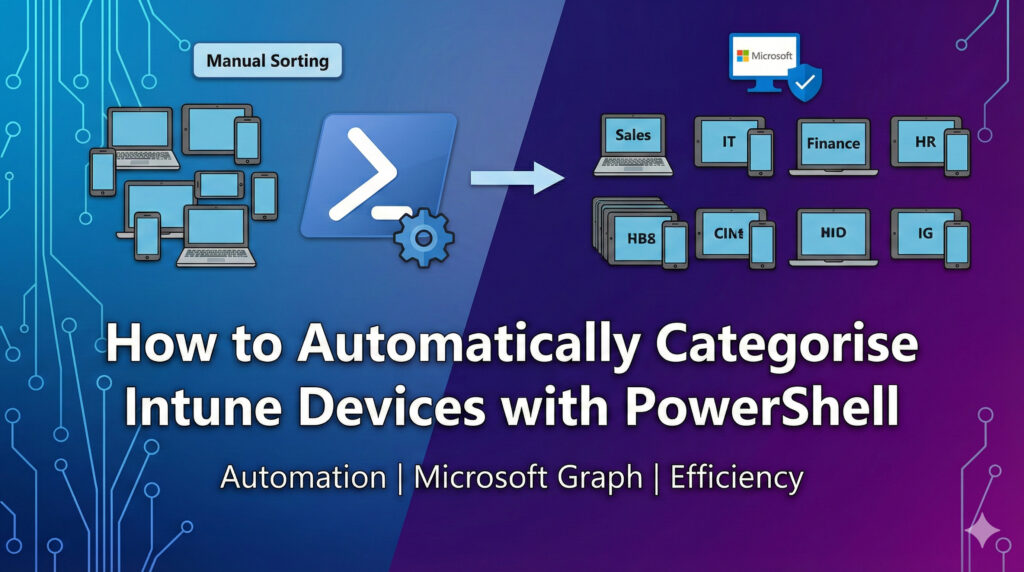
Intune device categories are fantastic for sorting devices by department, location, or business unit. They’re essential for things like setting specific policies or pulling clean reports. But there’s a huge pain point—manual assignment. When you’re onboarding hundreds of Windows devices, trying to manually keep those categories perfectly in sync with what’s in Azure AD (like a user’s Department or Company Name) is a recipe for errors and wasted hours. It just doesn’t scale.
This is exactly where we need automation.
We can completely eliminate this manual chore by leveraging the power of PowerShell and the Microsoft Graph API. This approach allows Intune to intelligently and automatically assign device categories based on the primary user’s profile attributes, ensuring your device management is always accurate, consistent, and efficient.
This guide walks you through a robust, production-ready script designed to:
- Automatically assign Intune device categories.
- Work safely using read-only vs. update modes.
- Produce clear, audit-ready reports.
Let’s dive in and see how we can make device categorisation a set-it-and-forget-it task.
Why Bother Automating This?
Before jumping into the code, it’s worth a moment to remember why we’re doing this in the first place:
- Stop Policy Drift: When categories are messy, your targeted policies and conditional access rules start to break down. Good categorisation means better device governance, cleaner filtering in reports, and simpler security segmentation (RBAC).
- Zero Administrative Overhead: Manually updating categories one device at a time is simply not a scalable job. Automation removes human error and frees up your IT team for more important work.
- Link to “The Source of Truth”: Your HR and identity data (in Entra ID/Azure AD) is the most reliable information you have. This script uses the user’s Department or CompanyName field, ensuring your device categories always reflect the most current identity data.
Script Overview
You can download the script from GitHub. Here’s what it does in a nutshell:
- Finds: All corporate-owned Windows devices managed by Intune.
- Identifies: The primary user for each device.
- Looks Up: The user’s specific attribute (Department or CompanyName).
- Matches: This attribute against existing Intune device categories.
- Updates: The device category automatically (unless you run it in ReadOnly mode).
- Reports: Creates a detailed CSV log and a simple audit summary.
You control the entire process using just a few parameters:
| Parameter | What it Does |
-CategorySource | Choose if you want to match against the user’s Department or CompanyName. |
-ReadOnly | Crucial: Runs a test-only report. No changes are made. |
-ReportPath | Sets a custom file path for the CSV report output. |
-ExcludeCategories | Skip devices that currently belong to specific categories (e.g., “IT” or “Test”). |
The script relies on the official Microsoft Graph PowerShell SDK modules (Microsoft.Graph.Users and Microsoft.Graph.DeviceManagement) for best compatibility.
How the Script Works (Step-by-Step)
Below is a simplified explanation of the workflow the script follows:
1. Connect to Microsoft Graph
The script connects to Graph with the following scopes:
User.Read.AllDeviceManagementManagedDevices.ReadWrite.AllDeviceManagementConfiguration.ReadWrite.All
These permissions are required to:
- Query user attributes
- Read managed devices
- Update device categories
2. Retrieve all Intune device categories
$DeviceCategories = Get-MgDeviceManagementDeviceCategory -AllThese categories must already exist in Intune:
Endpoint Manager Admin Centre → Devices → Device Categories → Create Device Category
Example categories:
- HR
- Finance
- IT
- Marketing
- Subsidiary A
- Subsidiary B
3. Retrieve all Windows corporate-owned devices
$Devices = Get-MgDeviceManagementManagedDevice -All -Filter "managedDeviceOwnerType eq 'company' and operatingSystem eq 'Windows'"This ensures BYOD and mobile devices are excluded.
4. Retrieve each device’s primary user
For each device, the script retrieves:
- DisplayName
- Department
- CompanyName
This step is essential because the script uses the user attributes to determine the correct category.
5. Determine the target category
Based on the parameter:
-CategorySource Departmentor
-CategorySource CompanyNameThe script sets the intended category.
6. Perform checking logic
The script performs several validations:
- Check 1: Is the device already in the correct category? (If yes, skip.)
- Check 2: Is the device in an excluded category (e.g., “IT”)? (If yes, skip.)
- Check 3: Does the user have the required attribute (Department/CompanyName)? (If no, report a skip.)
- Check 4: Does the intended category actually exist in Intune? (If no, report an error.)
7. Update category (only in Update mode)
If -ReadOnly is not used, the script updates the device category using:
Invoke-MgGraphRequest -Method PUT ...8. Generate a report
A CSV file is produced with the full results, including:
- Device details
- Primary user
- Current category
- Target category
- Action taken
- Notes
- Timestamp
The report filename includes:
ReadOnlyorUpdate- Timestamp
Usage Examples
1. Read-Only Mode (recommended first run)
.\Sync-IntuneDeviceCategories.ps1 -ReadOnly -CategorySource CompanyName✓ No device categories will be updated
✓ A full report shows what would be changed
✓ Safest option for validation
2. Read-Only With Exclusions
.\Sync-IntuneDeviceCategories.ps1 -ReadOnly -CategorySource CompanyName -ExcludeCategories "Test","IT"Useful when you want to preserve IT or pilot categories.
3. Update Device Categories (production run)
.\Sync-IntuneDeviceCategories.ps1 -CategorySource Department -ExcludeCategories "Test","IT"This will:
- Assign categories based on user’s Department
- Avoid modifying excluded groups
- Apply updates in Intune
Real-World Scenarios
Autopilot Onboarding: During a large-scale refresh, every Autopilot device gets the correct policies and RBAC roles assigned immediately, based on the user signing in.
Department-Specific Apps: A user gets a new laptop. Because the script runs, the laptop is categorized as “Finance,” and instantly receives the Finance-specific applications and restrictions.
Multi-Brand Management: An MSP or a large company manages devices for “Subsidiary A” and “Subsidiary B.” Using -CategorySource CompanyName ensures a device for Subsidiary A never gets the policies meant for Subsidiary B.
Robust Reporting and Auditing
The script provides a comprehensive reporting system, ensuring full transparency and an audit-ready overview of every categorisation run:
1. Detailed CSV Log
Every device processed is logged into a CSV file, providing a complete audit trail. This log captures:
- Device Details: Name, ID, Serial Number, OS, Ownership type, Enrollment, and Sync timestamps.
- User Attributes: Primary user’s ID, Display Name, Department, and Company Name.
- Category Status: The Current and Target device categories.
- Action Taken: Whether the script was updated, Would Update, resulted in No Change, was skipped, or produced an Error.
- Notes: A clear explanation detailing the reason for the action (e.g., Category Missing, Excluded Category, User Dept Blank).
- Timestamp: When the device was processed.
2. Execution Summary
After execution, the script generates a clear, concise summary on the console, providing a quick health check of the process:
- Updated: Count of devices successfully updated.
- Would Update: Count of devices that would be updated (in Read-Only mode).
- No Change: Count of devices already correctly categorised.
- Skipped: Count due to exclusion rules or missing user data.
- Errors/Failures: Counts of missing category matches, update failures, and user lookup errors.
Troubleshooting Guide
| Issue | Cause | Solution |
|---|---|---|
| Missing user Department | No value in the Entra user profile | Update user attributes |
| Category not found | Category name mismatch | Verify naming in Intune |
| Graph errors | Missing permissions or expired token | Re-authenticate with Graph |
| Device not updated | Running in ReadOnly mode | Remove -ReadOnly |
| Primary user not found | Device has no assigned user | Assign user manually or through Autopilot |
Take the next step: Automate Recurring Runs
To ensure continuous categorisation of every new device, we encourage you to schedule this script. You can easily set it up to run periodically using an Azure Automation Runbook.
Find a complete walkthrough on setting up the Azure Automation component here: https://sysadminhub.info/how-to-setup-azure-automation-account-with-expert-tips-best-practices/
This production-ready script is designed for scale and consistency, giving you everything required for automated Intune device categorisation—from initial testing to full, scheduled deployment