
Introduction
Let’s be honest: Microsoft 365 isn’t just about email, Word docs, and Teams meetings anymore. It has quietly evolved into the absolute nerve centre of modern IT.
Think about it. For most companies, M365 is the master switchboard. It controls who can log in (Entra ID), how mail flows (Exchange), where people collaborate (Teams and SharePoint), how devices are managed (Intune), and how data is protected (Defender and Purview).
Because everything is so deeply interconnected, a single, innocent-looking configuration tweak can have a massive blast radius.
We’ve all seen it happen, or at least lived in fear of it:
- One bad Conditional Access rule, and your entire workforce is locked out.
- A misplaced Exchange transport rule, and critical emails vanish into the void.
- A loose Teams or SharePoint setting, and suddenly, your data governance is compromised.
- A buggy Intune policy, and hundreds of user laptops start acting up.
- A minor slip in Defender or Purview, and you’ve just created a silent security gap.
Changes happen constantly—that’s just the reality of managing IT. But the real nightmare isn’t the change itself. It’s when things inevitably break that most teams can’t answer the simplest question:
“What did this setup actually look like five minutes before it broke?”
Without a clear answer, you’re just hunting for a needle in a haystack. And that is exactly why backing up your Microsoft 365 configuration, not just your data, but the actual settings, has gone from a “nice-to-have” to an absolute operational lifesaver.
Why Microsoft 365 Configuration Backup Matters
Most organisations already get the message when it comes to backing up user data. They’ve got their mailboxes, OneDrive files, SharePoint docs, and Teams chats covered. But for some reason, tenant configuration gets left out in the cold.
The reality is that your configuration is a bit of a ghost in the machine. It lives scattered across half a dozen admin portals, random PowerShell modules, Graph API endpoints, custom scripts, and a bunch of manual tweaks that nobody ever bothered to document.
Over time, your tenant naturally drifts. Policies get piled on, settings get nudged here and there, “temporary” emergency fixes become permanent, and different admins make changes across different workloads without telling each other.
Then, something breaks. And without a reliable snapshot of your configuration, troubleshooting turns into absolute misery.
You know something is broken, but you don’t know what changed. You know a policy was edited, but you have no clue what the old value was. You suspect things have drifted, but you have zero proof.
A mature Microsoft 365 setup shouldn’t rely on guesswork. You need a configuration backup that covers all the major bases:
- Identity & Access: Entra ID and Conditional Access policies.
- Core Apps: Exchange Online, Teams, SharePoint, Planner, and general tenant-level settings.
- Management & Security: Intune, Defender, and Purview/Compliance.
- Automation: Power Platform and user-level configurations.
This exact headache is why M365_Configuration_Backup exists. It’s designed to stop the guessing games and give you a clear, unarguable map of your environment.
What Is Microsoft 365 Configuration Backup?
At its core, M365_Configuration_Backup is a PowerShell module built for three specific jobs: backing up your Microsoft 365 tenant configuration, detecting drift, and enabling controlled restores. It plays nicely with all the heavy hitters in the M365 ecosystem: Entra ID, Exchange, Teams, SharePoint, Intune, Compliance, Defender, Power Platform, Planner, and core user settings. (You can grab the code directly from the M365_Configuration_Backup GitHub repository.)
The goal here isn’t to build a massive, bloated enterprise platform. It’s a lean, practical toolkit for the admins on the ground. Instead of forcing you to rely on a messy folder of screenshots, scattered scripts, random manual exports, or just pure memory, it creates clean, structured configuration snapshots that you can easily review, compare side-by-side, and pull up when an emergency strikes.
Is This a Replacement for Microsoft365DSC?
Short answer: No.
Microsoft365DSC is a fantastic, incredibly mature “configuration-as-code” beast. It uses PowerShell Desired State Configuration to treat your entire tenant like code, monitoring for drift, automatically enforcing settings, and managing tenants DevOps-style with source control, pipelines, and CI/CD deployment.
That is incredibly powerful, but let’s be real: not every IT team is ready for that level of complexity.
Many organisations don’t have the time or resources to compile DSC configurations, manage complex state definitions, build deployment pipelines, or deal with a tool that automatically overwrites manual changes.
Sometimes, administrators just need answers to basic, urgent questions:
- What does our tenant look like right now?
- What actually changed since our last backup?
- Which workload broke, and which specific settings drifted?
- Are our backups complete and healthy?
- Can we safely dry-run a restore before we push anything live?
That is exactly where M365_Configuration_Backup fits.
Think of Microsoft365DSC as a full desired-state management framework, while M365_Configuration_Backup is a backup-first, recovery-first operational tool. They aren’t competitors; they’re just built for different stages of your IT journey, and they can absolutely live side-by-side in your toolkit.
Microsoft365DSC vs Microsoft 365 Configuration Backup
| Area | Microsoft365DSC | M365_Configuration_Backup |
|---|---|---|
| Primary focus | Configuration-as-code and desired state management | Configuration backup, drift visibility, and recovery planning |
| Best suited for | Mature teams adopting DSC and DevOps-style tenant management | Admins who want a simpler backup-first workflow |
| Operating model | Define the desired configuration and apply it | Snapshot, compare, validate, plan, restore |
| Drift handling | Can monitor drift and optionally act on it | Detects and reports drift between backups |
| Restore approach | Applies DSC-defined configuration | Builds controlled restore plans and recovery artefacts |
| Adoption level | Better for teams ready for configuration-as-code | Easier first step for operational visibility |
| Complexity | More powerful, but requires DSC knowledge | More direct for PowerShell-focused admins |
If your organisation is ready for full Microsoft 365 configuration-as-code, Microsoft365DSC is a strong option.
If your organisation first needs a simple way to back up tenant configuration, compare snapshots, validate output, and prepare recovery plans, M365_Configuration_Backup is a practical place to start.
The Real Problem: How M365 Grows Out of Control
In the beginning, Microsoft 365 administration is simple. You have one or two admins keeping the lights on. But as an organisation grows, management gets fragmented:
- Security owns Conditional Access and Defender.
- Collaboration teams own Teams and SharePoint.
- Endpoint teams manage Intune.
- Compliance tackles Purview.
- The Service Desk throws in daily operational tweaks.
- External consultants drop in, make project updates, and leave.
Before you know it, nobody actually knows how the whole thing is wired together. This isn’t a lack of skill; it’s a total lack of visibility.
Without a clear picture, you run into the same classic headaches:
- Making major changes without a reliable baseline to fall back on.
- Basing your disaster recovery plan on outdated, manual documentation.
- Dealing with silent configuration drift across different workloads.
- Guessing at rollback steps during an active incident.
- Relying way too much on “tribal knowledge” locked in individual admins’ heads.
- Inheriting a messy folder of scattered scripts with inconsistent outputs.
M365_Configuration_Backup was built to eliminate that risk. It gives you a repeatable, predictable way to take snapshots, spot drift, and plan actual recoveries.
Key Capabilities: What’s Under the Hood?
This isn’t just an export script. It’s a practical toolkit designed for day-to-day operations.
1. Multi-Workload Backups
Because M365 settings are scattered across dozens of different portals, APIs, and PowerShell modules, this tool unifies your workflow. You can capture Entra ID, Exchange, Teams, SharePoint, Intune, Defender, Purview, Planner, and Power Platform in a single, consistent run.
2. Smart Drift Detection
Drift happens. Whether it’s an approved change, an emergency patch, or an accidental click, tenants change over time. By comparing two snapshots, you can instantly see exactly what changed between two points in time. It’s your best friend for troubleshooting incidents, reviewing post-project impact, or handing over evidence to auditors.
3. Backup Cataloging & Integrity Validation
A backup is completely useless if you can’t trust it. A folder full of raw JSON files doesn’t tell you much on its own. The tool includes built-in integrity validation to inspect your snapshots, ensuring they are structurally complete and reliable before you need them in a crisis.
4. Delta Comparison (Cutting the Noise)
M365 tenants are massive. If you had to read through the entire configuration export every time you wanted to check a change, you’d go crazy. The delta comparison feature filters out the noise, highlighting only the specific lines, policies, or objects that actually changed.
5. Controlled, “Review-First” Restore Planning
Blind restores are incredibly dangerous in M365 because different APIs behave differently, and dependencies are everywhere. This module enforces a strict Review Before Applying philosophy. It uses dry-run workflows, apply modes, and detailed restore plans so you know exactly what will happen before you touch a live environment.
6. Scenario-Based Recovery Packs
You don’t always need to restore a whole tenant—usually, just one area is broken. The tool supports targeted “Recovery Packs” (like an Intune baseline recovery), allowing you to focus your recovery efforts exactly where the fire is.
7. App-Only Least Privilege
Security matters. The tool uses certificate-based app-only authentication and is designed to use separate Entra ID app registrations for backups (Read-Only) and restores (Read-Write). Keeping these roles separate ensures tight governance and satisfies your security team.
The Maturity Journey: Why Simplicity Wins
The biggest strength of this approach is that it meets your team where they are right now. It doesn’t force you to jump straight from manual clicks into complex, DevOps-style configuration-as-code.
Instead, it bridges the gap in the typical IT maturity journey:
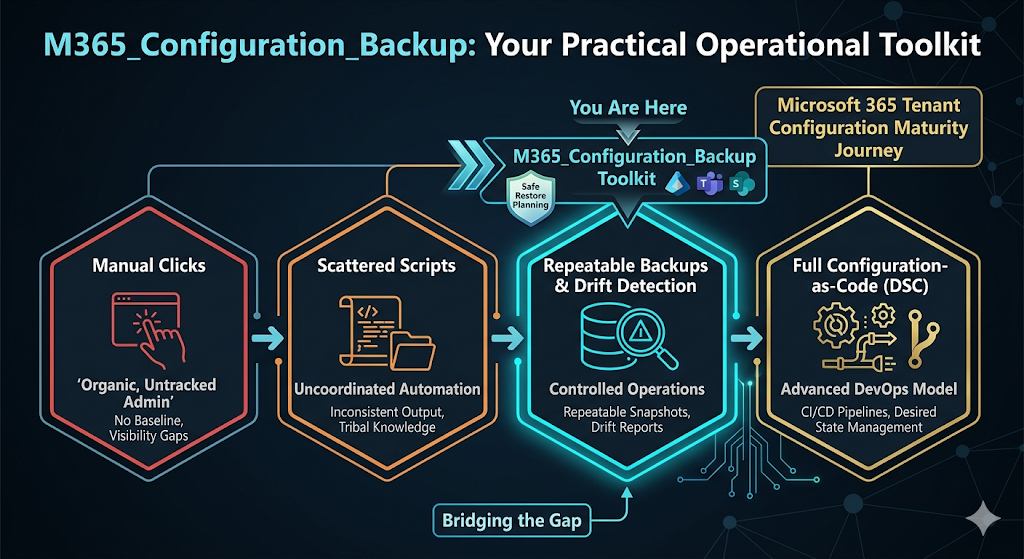
It stops the madness of undocumented changes without requiring your team to learn CI/CD pipelines and DSC compilation overnight.
Is This Tool For You?
This project is a perfect fit if you want to stop relying on screenshots, run regular configuration baselines, detect drift, and sleep better at night knowing you have a rollback plan.
It’s built specifically for:
- M365 & Intune Administrators who need to protect their sanity.
- Cloud Ops Engineers & Consultants validating changes before and after projects.
- MSPs that are looking to establish a consistent, auditable baseline across multiple customer tenants.
- Security & Compliance Teams who need hard evidence for audit readiness.
A Dose of Reality: Important Limitations
Let’s be completely honest: no M365 tool can perfectly restore every single setting with a single click.
Microsoft 365 is massive, and its underlying APIs are constantly shifting. Some settings are export-only by design, others have tight licensing dependencies, and some rely on tenant-specific IDs that can’t easily be copied.
Because of this, restore support varies by workload (some are export-only or partial). That’s exactly why the tool leans so heavily on conservative dry runs and approval gates. Any tool that promises a flawless, automated “one-button full restore” for M365 is selling snake oil. This tool focuses on giving you the data, the comparison, and the plan to recover safely.
Cheat Sheet: Operational Best Practices
If you deploy M365_Configuration_Backup, treat it as a core operational process, not a one-off trick:
- Automate the schedule: Run backups regularly (and always take a manual snapshot right before a major tenant change).
- Lock it down: Configuration exports contain sensitive security data. Store them securely and keep your runtime config files out of public GitHub repositories.
- Separate your powers: Use a Read-Only app registration for daily backups, and keep the Read-Write app locked down for restores.
- Trust, but verify: Regularly review integrity reports and run dry-run restores before an actual emergency happens.
- Approve the keys: Document exactly who has the authority to approve a live restore operation.
The true value of a configuration backup isn’t a single snapshot—it’s the history, the delta tracking, and the confidence that you can answer the question: “What did we just break?”
Project Repository & Setup
The full, technical source of truth—including prerequisites, app registration steps, GitHub Actions automation, and example commands—lives on GitHub. Head over to the M365_Configuration_Backup GitHub Repository to get started.